Member Management
Tracking Member Visits
This guide shows you how to use the Visits feature in your Smile Advantage dashboard to track each member’s visits.
Once the Visits feature has been activated, follow the steps below to monitor your members’ visits.
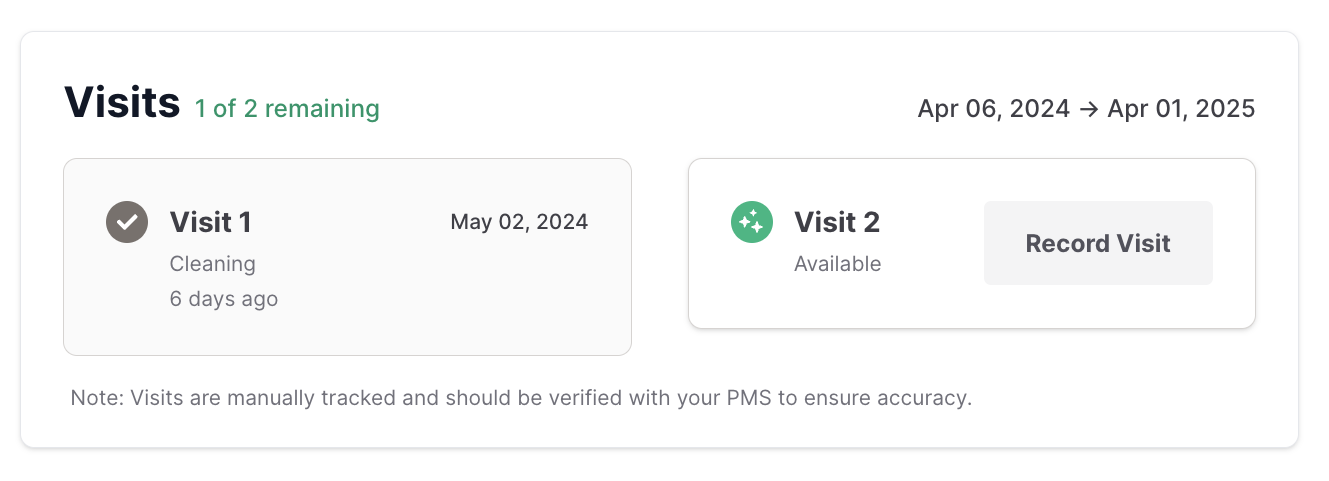
Recording and managing visits
Section titled “Recording and managing visits”- Access the Visits feature. Locate the Visits option within your dashboard. This feature helps you track each member’s visits manually, with an automated version planned for future updates.
- Record a visit. Go to the member’s profile and click Record Visit. If you need to backdate the visit, select the appropriate date from the calendar. You can optionally enter a treatment code, though it is not required.
- Manage visit details. After recording a visit, add details about the service provided, such as “cleaning” or “exam.” You can also use the notes field for any additional information. The system automatically timestamps when the visit was recorded.
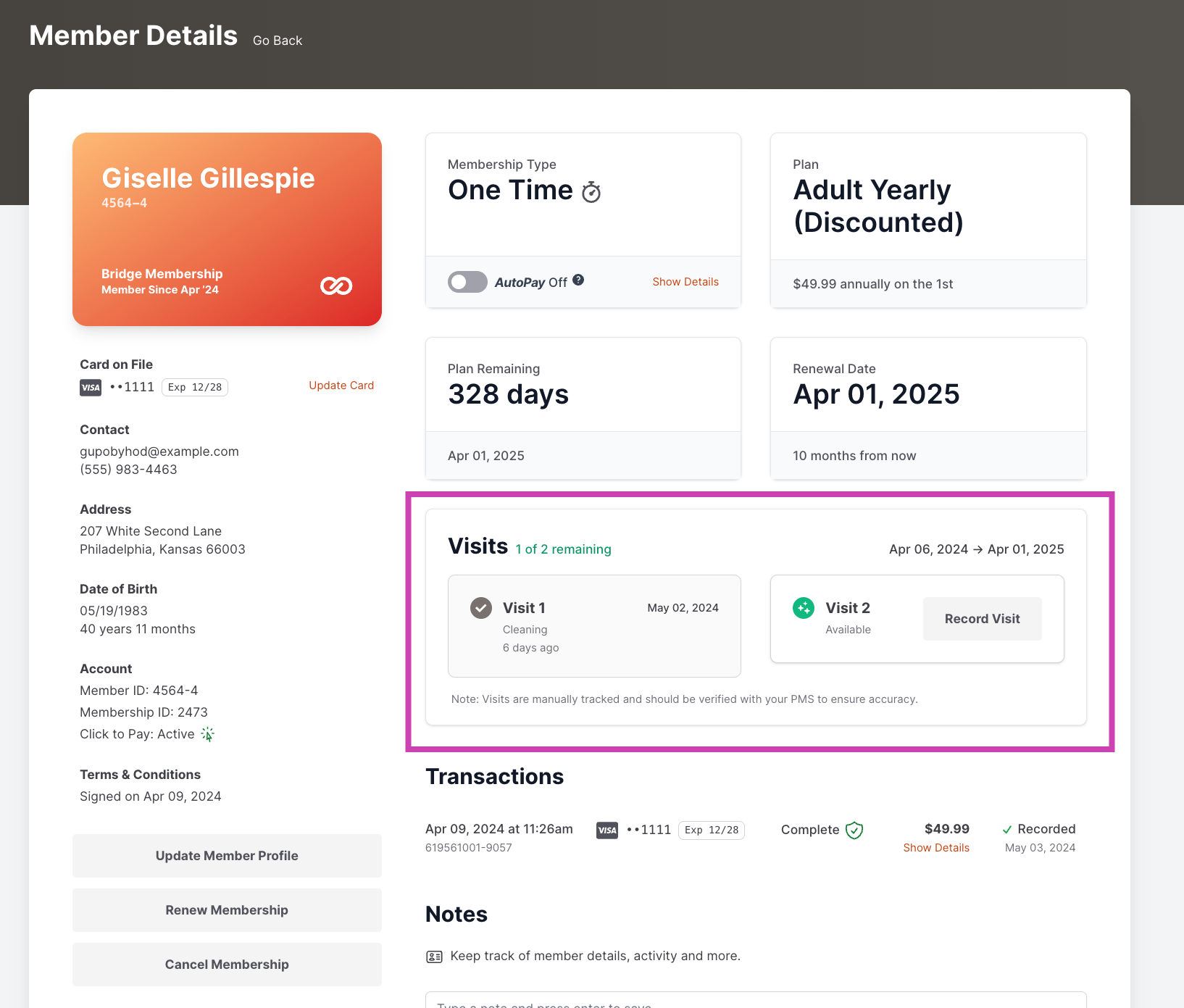
Tracking remaining visits
Section titled “Tracking remaining visits”- Each recorded visit updates the member’s profile, showing the number of remaining entitlements under their membership. For example, if a member is entitled to two cleanings per year, after recording one visit the dashboard reflects one remaining cleaning.
- After making changes or recording visits, refresh the page to see the updated activity feed.
- On the renewal date, the visit count automatically resets according to the membership terms.