Payment Management
Tracking Payments with Ledger Assist
Ledger Assist is a feature in Smile Advantage that helps you track payments and confirm they are recorded in your practice management software.
How to use Ledger Assist
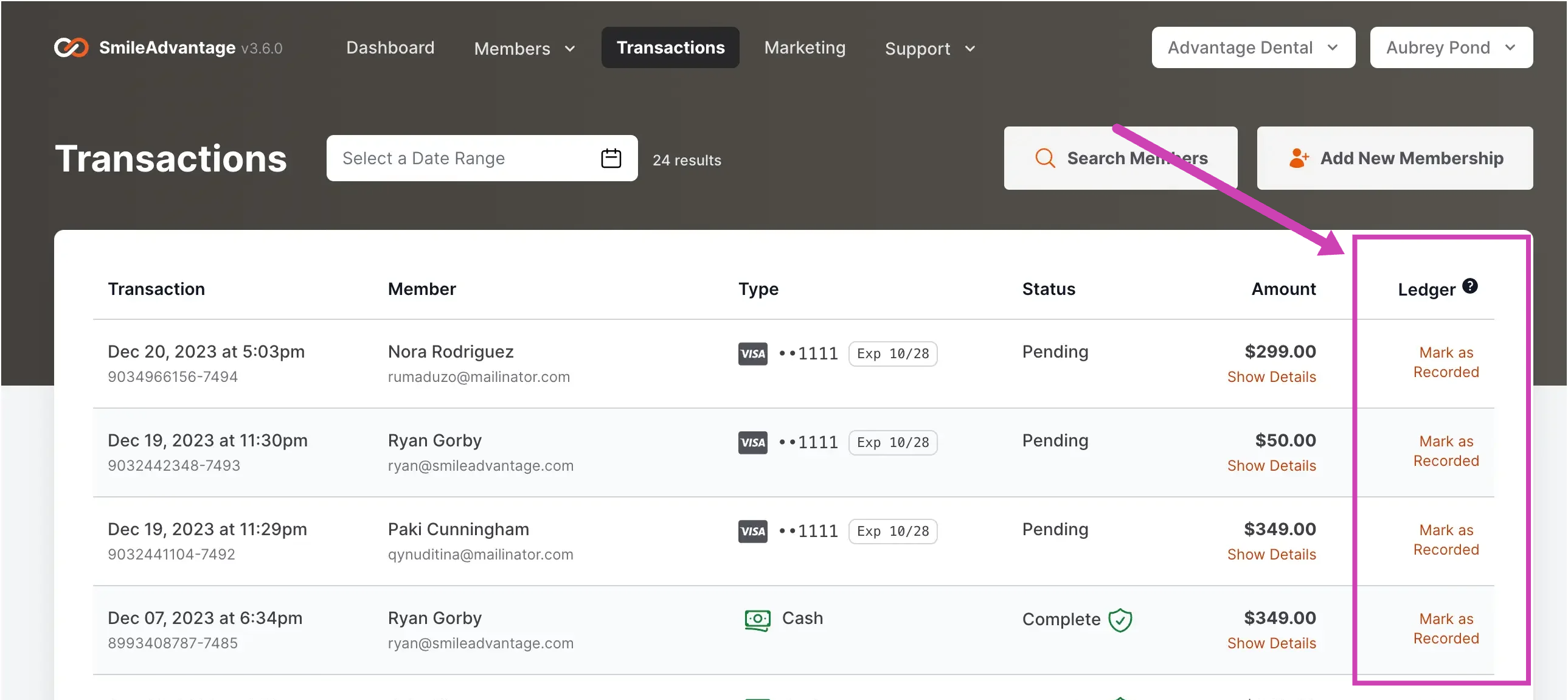
Section titled “How to use Ledger Assist”- Go to the Transactions screen. In Smile Advantage, navigate to the Transactions screen.
- Check for the Ledger column. Look for a column on the right side called Ledger. If you do not see it, contact Smile Advantage support to activate it (it is free).
- Identify transactions to record. Filter transactions by week or any other criteria you prefer.
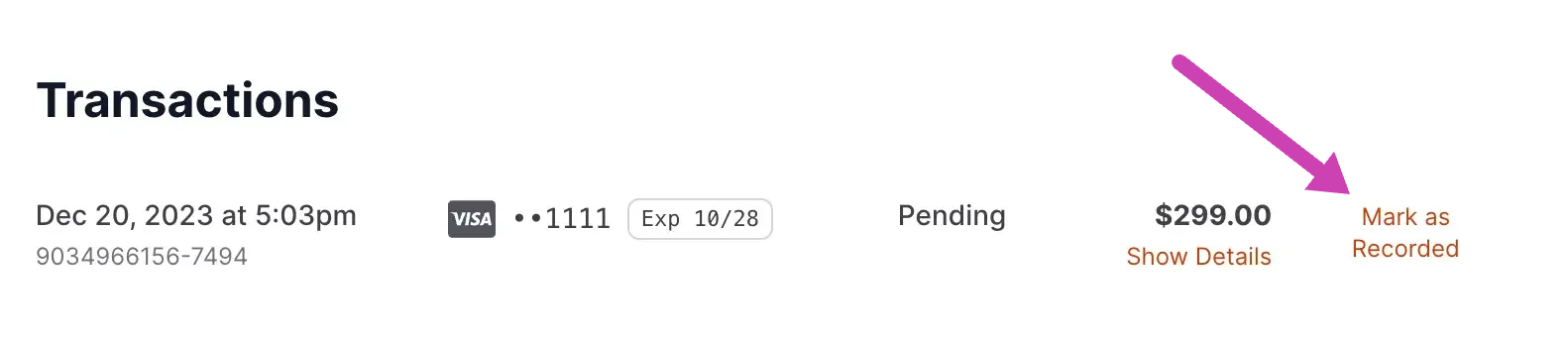
- Find “Mark as Recorded.” Transactions with Mark as Recorded next to them are payments received through Smile Advantage that need to be recorded in your practice management software.
- Click “Mark as Recorded.” This confirms you have recorded the transaction in your practice management software and acts as a reminder that the payment has been processed.
What Ledger Assist helps you do
Section titled “What Ledger Assist helps you do”- Track payments received through Smile Advantage
- Confirm those payments are recorded accurately in your practice management software
- Maintain consistency between your Smile Advantage transactions and your accounting records
To quickly find payments that still need posting, filter by Not Posted on the Transactions screen. See Transaction Filters to Streamline Your Workflow.